Create an insurance agency flyer with AI and Canva
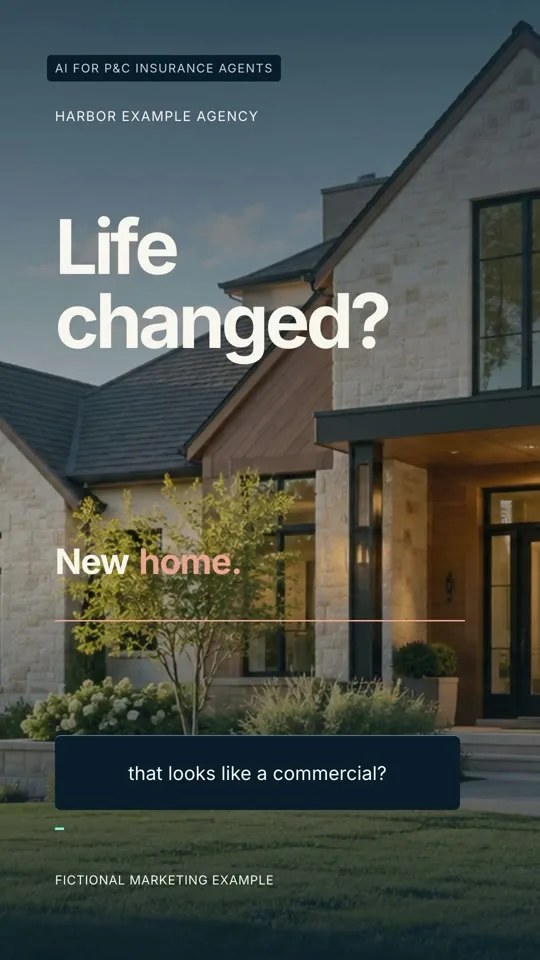
The before-and-after example uses identical fictional wording. A clearer hierarchy, photography and spacing make the invitation easier to see.
Published by Agent AI Workshop, a Useful Tools LLC resource. Example and source standards.
Watch the walkthrough
1:07 · Fictional example · Narrated and captioned
Read the full transcript
Would you stop scrolling for this flyer? Same message, but a very different result. Here is a plain practice draft, and here is the editable version Canva generated.
In ChatGPT, open Plugins and search Canva. Choose Canva, then connect the correct account if it isn't connected. Review the permissions. This account is already connected.
In a new chat, select Canva. Paste your approved wording and ask for an editable insurance review flyer. Request a bold headline, a strong home photo and a clear invitation to schedule a conversation.
This is the actual result. The wording stayed the same. The larger headline, photo and contrast give the message a clearer visual order. The invitation is easy to find.
Open the design in Canva. The headline is editable. Replace the contact placeholder and review the photo and wording. For a different style, supply a permitted example and describe what you like about it.
Check the wording, placeholder and readability before sharing. Canva generation uses AI credits; some features need a paid plan. The prompt and steps are in the first comment.
How to try it
Find Canva in your AI tool
In the demonstrated ChatGPT route, open the Plugins directory, search Canva and review the publisher and permissions. Workspace access may vary.
Choose Canva and supply the request
In a new chat, select @Canva. Paste approved wording and describe the format and look.
Open the editable design
Open the returned result in Canva. Check the text, replace contact placeholders and choose permitted images.
Review before sharing
Confirm wording, image rights, layout and export settings. Generation uses AI credits; some assets and features require a paid plan.
Copy the practice prompt
Canva, create one editable portrait A4 insurance-review flyer for fictional Harbor Example Agency. Use only this exact wording:
Life changed?
Let’s catch up.
New home. New car. New plans.
Make time for an insurance review.
Harbor Example Agency
Schedule a conversation
[agency contact]
Fictional training example.
Give it a premium editorial look: a bold oversized headline, a strong realistic home photo, off-white and navy with a restrained coral accent, generous whitespace and an easy-to-find invitation to schedule a conversation. Keep the main text editable. No clipart, invented facts, savings or coverage promises, prices, real contact details, QR code, logo or em dashes. Show the result for review.
Full setup instructions and optional enhancements
What to review
The before is a fictional practice layout. The after is actual Canva-generated output from the same wording. It is one example, not a promise of business results. Use approved material in approved tools.
Build on it
- Novice: follow the fictional example and check the result.
- Casual User: reuse the prompt with your agency-approved wording and review checklist.
- Power User: test a second example and document the changes before making the workflow repeatable.
For general education only. Check AI output and follow your agency’s policies before using it. You are responsible for how you apply these ideas.