
Turn agency instructions into an AI training infographic
Published by Agent AI Workshop, a Useful Tools LLC resource. Example and source standards.
Turn an approved agency how-to into a visual guide people can scan. Watch the actual result, then try it with one source and one prompt.
Get the steps and prompt ↓Fictional portal example. Real generated output. Review the graphic against your approved source.
From four steps to a one-page guide.
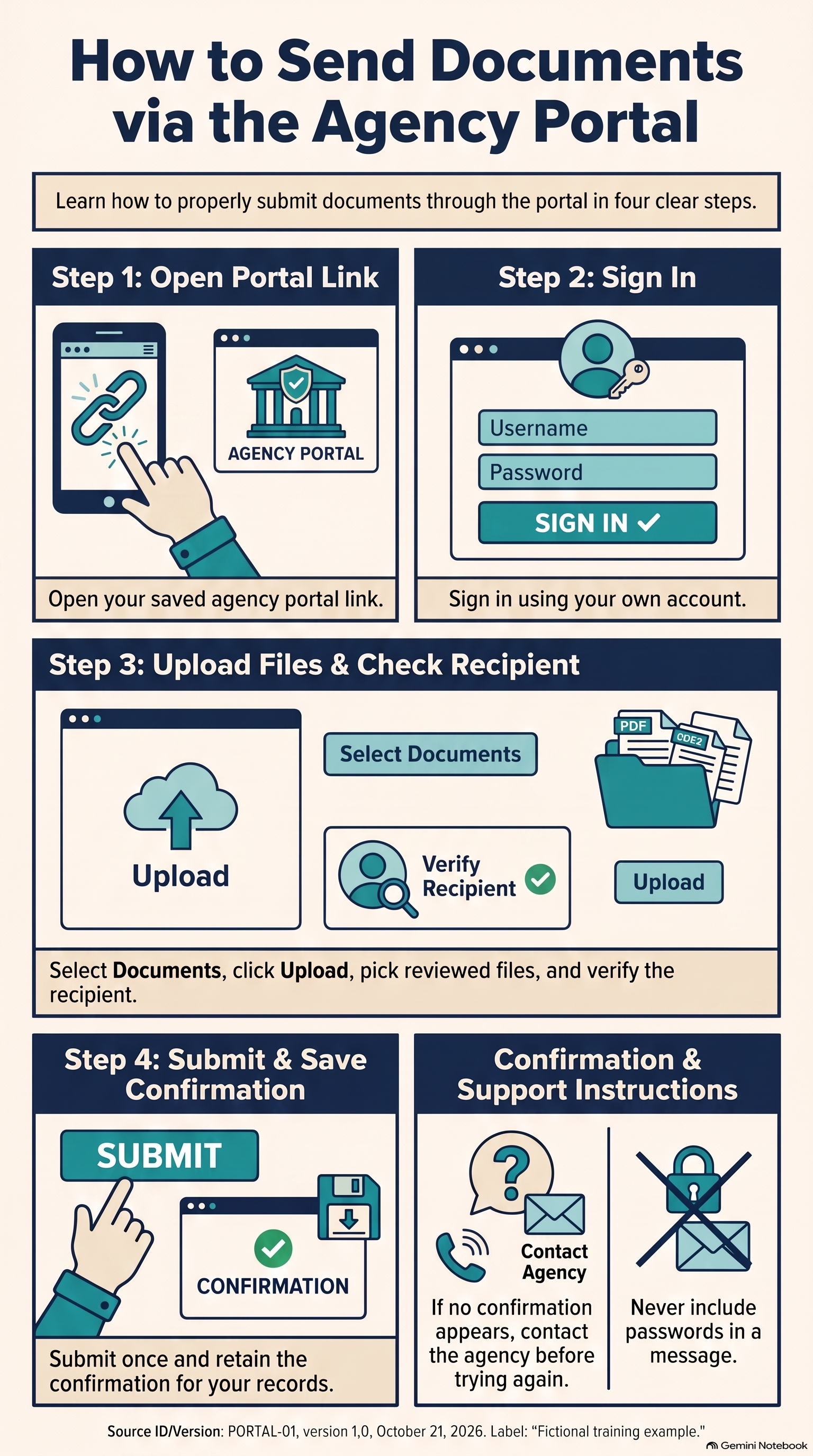
Send documents through the agency portal
- Open your saved agency portal link.
- Sign in using your own account.
- Choose Documents, then Upload. Select the reviewed files and check the recipient.
- Submit once and save the confirmation.
If no confirmation appears, contact the agency before trying again. Never include passwords in a message to the agency.
PORTAL-01 · Version 1.0 · October 21, 2026
Invented example, not a live portal.
What you need
An agency-approved Gemini Notebook account with the Infographic feature and notebook edit access. This demonstration used Pro. Access and limits vary; the feature requires eligible users age 18 or older. No connection to a live agency portal is needed.
Try it in three steps.
Add one approved how-to
Open Gemini Notebook in an agency-approved account. Choose New notebook → Add sources → Copied text. Paste one permitted procedure and its version/date. For practice, use the fictional source below. Keep the notebook private.
Generate the visual
In Studio → Infographic, choose Portrait, Concise and Instructional. Paste the prompt below and select Generate now. The wording should be short enough to scan.
Check, then download
Compare the image with the source, including every step, the recipient check, confirmation and help/password notes. If anything is missing or changed, revise and generate again. After agency review, choose More options → Download to save the PNG for a welcome email or staff guide.
Copy the infographic prompt
Paste this into the Infographic customization prompt after adding your approved source.
Create a clear four-step customer how-to using only this source. Keep every step in order, the recipient check, the confirmation instruction, and the help/password notes. Use navy, teal and warm white with large readable text and simple instructional icons. Add the source ID/version and “Fictional training example.” Do not invent links, features, deadlines, coverage or security claims.
Download prompt as text ↓Use the same fictional example.
Download the source, add it as copied text and try the prompt. The example image is AI-generated and must be checked against the source before reuse.
Read the complete practice source
FICTIONAL TRAINING EXAMPLE
Harbor Example Agency
Send documents through the agency portal
Guide PORTAL-01, version 1.0, October 21, 2026.
This is an invented demonstration, not instructions for a live portal.

1. Open your saved agency portal link.
2. Sign in using your own account.
3. Choose Documents, then Upload. Select the reviewed files and check the recipient.
4. Submit once and save the confirmation.

If no confirmation appears, contact the agency before trying again.
Never include passwords in a message to the agency.

Keep all four steps in order and retain the help instruction. No response time, coverage, payment or security guarantee is stated.
Fictional training example.
One quick review
Read the image against the source, line by line. Keep all four steps in order, the recipient check, confirmation instruction, help note and password note. Check small print for legibility and remove any invented feature or claim before agency approval.
This is a static PNG. Updating the source does not automatically update the downloaded guide. Keep the source version and review date with the approved image, then regenerate and review when the procedure changes.
Optional improvements and access limits
Casual User: reuse approved agency colors and wording. Power User: retain source version and review date with each reviewed image.
The demonstration uses a manually pasted source, not automatic synchronization or a live portal integration. Product access, settings and plan limits can change. Official Infographic help ↗ · Official access and plan information ↗. Checked October 21, 2026.
Read the complete video transcript
Still sending a wall of instructions? Turn your approved how-to into a visual guide. Here is the actual result from four fictional portal steps.
In Google's Gemini Notebook, start a notebook and add your approved instructions as copied text. In Studio, choose Infographic.
Select Portrait, Concise, and Instructional. Paste the prompt in the first comment, then generate. Keep the instructions short so the result is easy to read.
Compare the graphic with your source. Check every step, the recipient check, and the help note. Download the reviewed PNG. After agency approval, use it in a welcome email or staff guide. Same procedure, a format people can scan.
For general education only. Check AI output and follow your agency’s policies before using it. You are responsible for how you apply these ideas.